How to update drivers on PC easily in 2026


Keeping PC drivers up to date helps to optimize both security and performance. New updates may add new features, fix bugs, or offer other improvements. While Windows usually installs recommended drivers automatically, it doesn’t always provide the newest driver versions from device manufacturers. Some driver updates are also offered as optional updates rather than being installed automatically, so manual updates are sometimes needed.
This guide explains the main ways to update drivers on Windows 11 and on Windows 10 systems that are still in use, when to use each method, and what to do if an update fails.
Note: Windows 10 reached the end of support on October 14, 2025.
What are device drivers, and why are they important?
Device drivers are specialized software that enable an OS, such as Windows, to communicate with a specific physical device (hardware). Drivers tell the OS what the device is and how to interact with it.
This is essential for managing clicks, sound, printing, and other inputs and outputs. For example, many devices rely on built-in Windows drivers to work right away, while others need vendor-specific drivers to unlock full functionality. A mouse, for instance, may work with a generic driver, but additional software or drivers can add support for advanced features.
PC drivers come in many forms, each designed to support a specific type of hardware. Common examples include:
- Chipset or motherboard drivers: Help Windows properly identify chipset-related components and support platform features such as power management, USB connectivity, and device detection. Known providers of chipset drivers include Intel (with Chipset INF Utility) and AMD (with Ryzen Chipset Drivers).
- Graphics drivers (GPU): Control how images, video, and 3D graphics are rendered and displayed on screen. Common examples include NVIDIA GeForce, Intel Arc Graphics, and AMD Radeon.
- Audio drivers: Enable sound output, microphone functionality, and advanced features like surround sound. Common examples include Realtek audio drivers and Creative Sound Blaster drivers, as well as Intel audio components used on some systems.
- Input device drivers: Translate physical actions such as keystrokes, mouse movements, and controller inputs to enable accurate keyboard, touchpad, mouse, and game controller functionality. Examples include Microsoft Human Interface Device (HID) drivers, Synaptics touchpad drivers, and vendor software that adds features for certain peripherals.
- Network drivers: Allow the system to connect to wired and wireless networks to send or receive data over the internet (e.g., Intel Network Adapter Driver, Realtek PCIe, Broadcom NetXtreme). Missing or outdated network drivers can cause connection instability, adapter detection problems, and other network connectivity issues.
- Storage drivers: Let the OS detect storage devices and read or write data to hard drives and other storage media. Examples include Intel Rapid Storage Technology and AMD RAID drivers, as well as other vendor- or device-specific storage drivers, where applicable.
Other external devices like printers, webcams, Bluetooth headphones, and USB flash drives also rely on drivers to function correctly.
Why keeping drivers up-to-date is essential
Keeping drivers up to date is important for two main reasons: security and performance.
Starting with the former, outdated drivers can contain known vulnerabilities that attackers may exploit to gain unauthorized access to a device. Because drivers communicate closely with the OS, a security flaw can have a system-wide impact. Regular updates help address known issues once fixes are released.
For example, a 2025 vulnerability in the Microsoft Windows Cloud Files Mini Filter Driver (CVE-2025-62221) allowed attackers to escalate privileges locally. This illustrates how security flaws in drivers can have broader consequences because of how closely drivers interact with the OS. Microsoft addressed the issue in its December 9, 2025, security updates for affected Windows versions.
Keeping drivers up to date can also improve performance and reliability. Driver updates often fix common bugs that cause freezes, crashes, and other malfunctions. They can also improve how devices interact with the OS.
This means smoother performance and better compatibility with new software. GPU driver updates, for example, are relevant when troubleshooting display issues or hardware acceleration problems. They can also affect performance in graphics-intensive apps like Blender. For this reason, updating graphics drivers can help improve compatibility, reliability, and sometimes performance in games.
Best practices to update PC drivers safely
When updating drivers manually, a few extra checks can help prevent errors.
Create a restore point (recommended)
Windows’ System Restore feature uses restore points to return system files, settings, and installed apps to an earlier state. This can undo recent system changes without affecting personal files, though it is not a substitute for backing up important data. It can be useful for troubleshooting if a driver update causes unexpected problems.
As such, it’s a good idea to create a new restore point before updating drivers.
To create a new restore point:
- Use the search function to find Create a restore point.
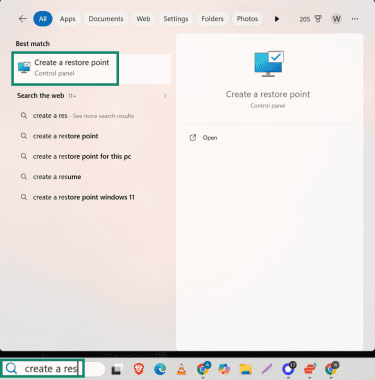
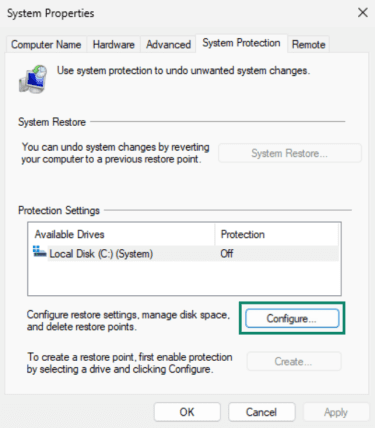
- If the option to create a restore point is greyed out, click Configure.
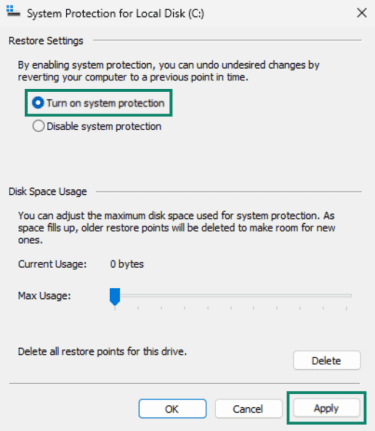
- Select Turn on system protection and click Apply.
- Click Create in the System Properties window.
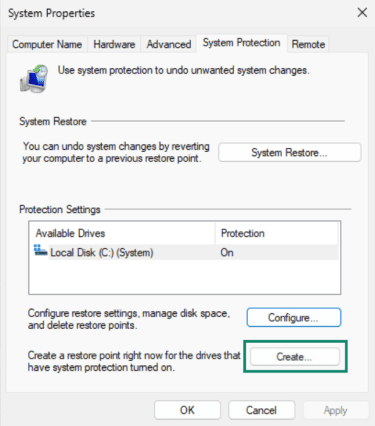
- Name the restore point and click Create.
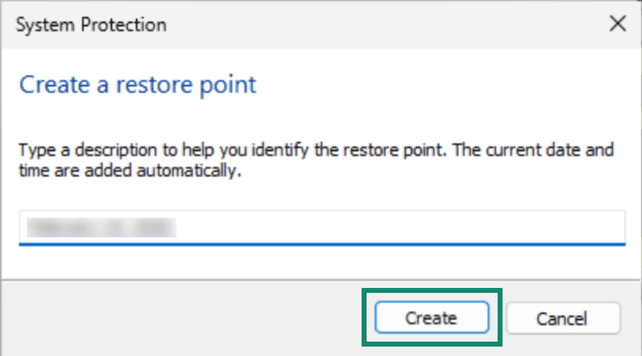
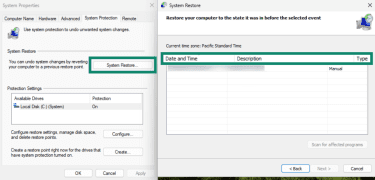
- Once it's created, you’ll find the restore point under System Restore if you need to roll back recent system changes. Selecting System Restore and then Next, shows the list of available restore points.
Avoid “driver updater” tools
Driver updater tools are third-party programs that can scan a PC and automatically install new driver versions with one click. They promise a convenient way to keep the system up to date and patch performance issues. However, they may be less reliable than using Windows Update or drivers obtained directly from the hardware manufacturer.
Unverified driver updating tools may include mismatched drivers, unnecessary updates, and bloatware. Because they’re not always accurate, these updaters can flag drivers that don’t need updating or install drivers for a different PC model.
This can introduce bugs and break features that were already working. Downloading drivers or updater tools from untrusted sources can also increase security risk. In more serious cases, fake or tampered driver downloads can expose a system to malware.
Note: This caution doesn’t necessarily apply to Original Equipment Manufacturers (OEMs). For example, companies like Lenovo and NVIDIA offer official tools to distribute verified updates for supported hardware.
Comprehensive guide: How to update all drivers on a PC
There are several methods to update drivers on a PC.
Using Windows’ built-in tools is convenient because they handle updates automatically and prioritize compatibility. However, these updates may arrive later than manufacturer releases and may not always include the newest and most feature-rich versions.
Manual updates and official OEM or component-vendor tools often provide newer or more specialized drivers, which can enable specific device features. Note that installing the wrong driver or version can cause issues.
Method 1: Update drivers with Windows Update
Windows 10 and 11 can automatically install recommended hardware drivers through Windows Update. However, this is not always the most comprehensive method because optional driver updates are not installed automatically, and the latest manufacturer version may not be available there right away.
Here’s how to trigger a Windows update:
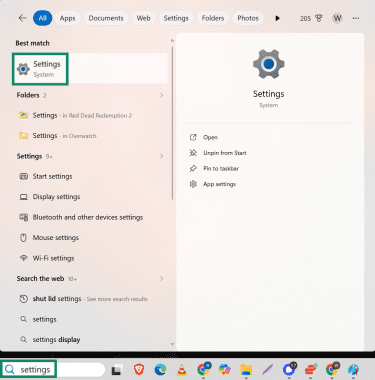
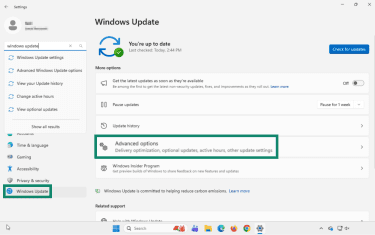
- Open Settings using search or another method.
- Open Windows Update from the sidebar. In Windows 11, go to Advanced options. In Windows 10, go to Update & Security > Windows Update > Advanced options.
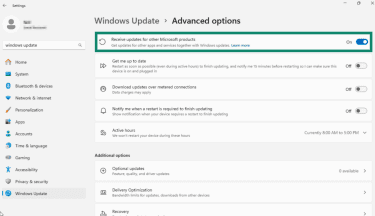
- Make sure that Receive updates for other Microsoft products is toggled on.
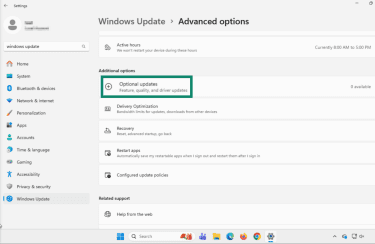
- If you're on Windows 11, go to Additional options again, find Optional updates, and select the one needed. Windows 10 users should select View optional updates if it appears.
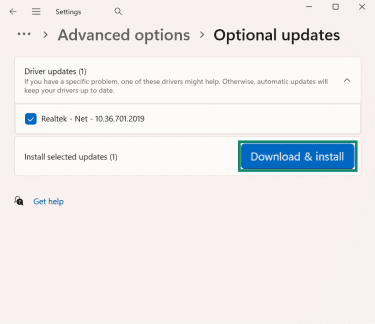
- Click Download & install. Once done, restart the computer if prompted.
Method 2: Update drivers using Device Manager
Device Manager gives more control over individual devices and can be useful when updating or reinstalling a specific driver.
- Click the Start button, then search for and open Device Manager.
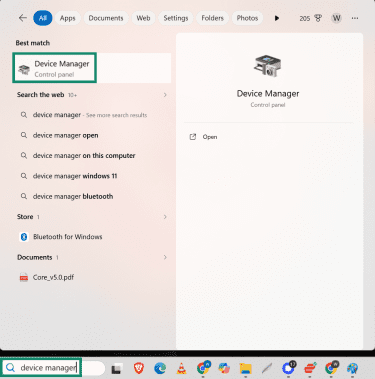
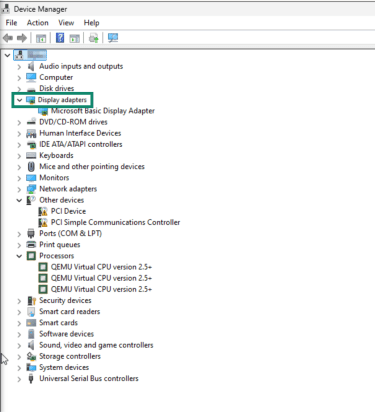
- Expand the device category you want to update by clicking the associated arrow.
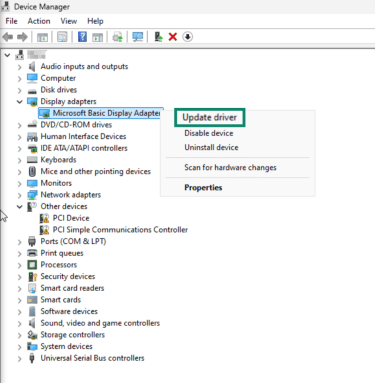
- Right-click the device underneath and select Update driver.
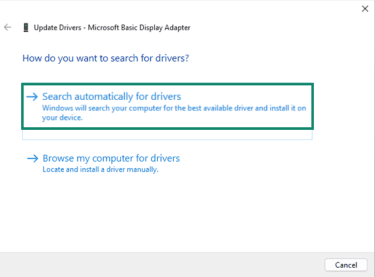
- Next, select Search automatically for drivers. If Windows finds an updated driver, it will install it automatically.
Method 3: Install drivers from the manufacturer (manual)
Windows Update often focuses on recommended drivers that work across many systems, but hardware manufacturers may also release newer drivers with performance, compatibility, stability, or security improvements.
This method gives you access to the most recent driver versions directly from the hardware provider. In some cases, it lets you choose between different driver versions depending on your needs.
Before attempting a manual update, it helps to identify your hardware and Windows version. One quick way to check system details is to press Windows key + R. Type msinfo32 in the dialog box and click Okay.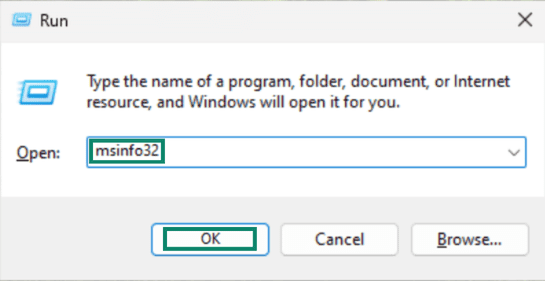
The new window displays system information such as the processor, system model, system type, baseboard information, and Windows version and build.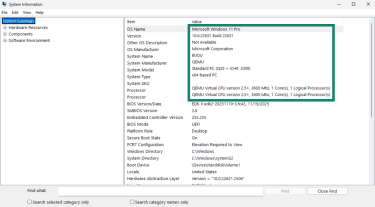
- Once the relevant details are confirmed, go to the device manufacturer’s official website. For example, if updating an NVIDIA GPU, visit NVIDIA’s official driver page.
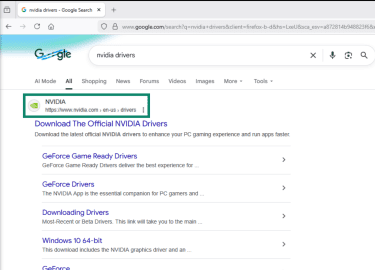
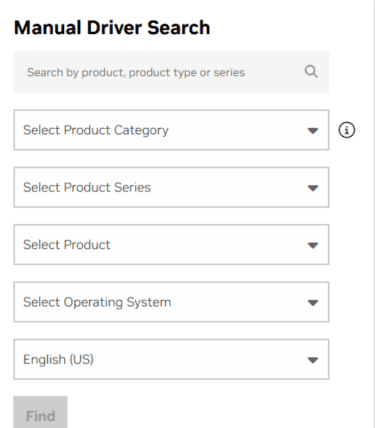
- Download the update that matches your system specs, such as the device model, product series, and Windows version.
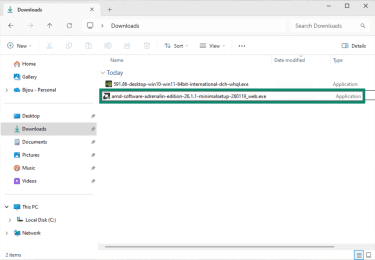
- If the driver is an .exe file, double-click it to install. If it's provided as an archive, extract it first.
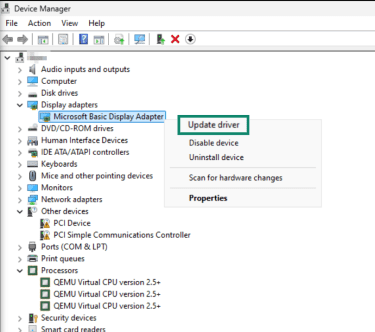
- Open Device Manager and expand the category for the device you want to update. Right-click the device and select Update driver.
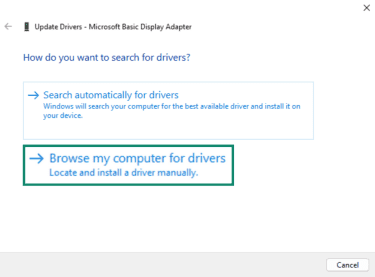
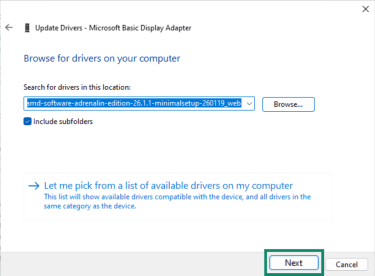
- Choose Browse my computer for drivers.
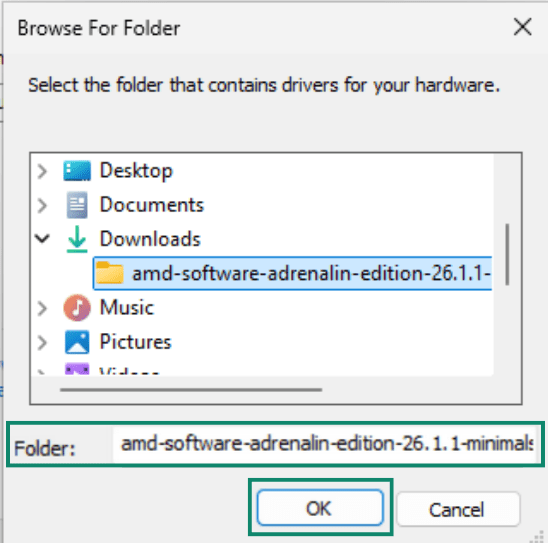
- Click Browse, select the folder containing the extracted driver files, and click OK.
- Click Next to install the driver.
Method 4: Use official OEM tools
OEM tools are apps from PC manufacturers that can scan a supported system and install approved updates. Some official update tools also come from component vendors, such as NVIDIA, and are designed to update only that vendor’s hardware.
They work similarly to Windows Update, but often provide drivers tailored to a specific PC model or hardware component. This makes them a convenient, low-effort option for supported PCs and for individual components like graphics cards.
Generally, tools from PC manufacturers provide a broad range of updates in a single app, including major drivers and firmware. On the other hand, apps from GPU makers will usually cover only drivers for their own hardware.
Common examples include Dell, Lenovo, HP, and Nvidia. PC-manufacturer tools should generally be used only on systems from the same brand, while component-vendor tools should be used only with supported hardware from that vendor.
Dell Command | Update (DCU)
Before you get started, install the latest version of DCU from Dell's official website. Next, follow the steps below to find and install driver updates.
- Open Dell Command | Update from the Start menu.
- Click Check to scan your system for available updates.
- Select the updates to install, and optionally enable Automatically restart system.
- Click Install.
Lenovo System Update / Lenovo Vantage
For consumer Lenovo devices, Lenovo Vantage is the standard update tool, while Lenovo System Update is common on some business models.
- Open Lenovo Vantage or Lenovo System Update from the Start menu.
- Navigate to the System Update or Update & Security (under the Device tab).
- Click Check for updates to scan your device.
- Select the recommended driver and firmware updates.
- Click Install Selected to apply the updates. Your PC might restart automatically.
HP Support Assistant
Find the latest version of HP Support Assistant on the provider’s official website.
- Open HP Support Assistant from the Start menu.
- From the main My Dashboard tab, go to Device Support.
- Click Software and Drivers and wait for the tool to scan your system for available updates.
- After the scan finishes, select the recommended updates.
- Click Download and Install. If prompted, restart your computer.
Nvidia App
Get the official NVIDIA app if needed and open it.
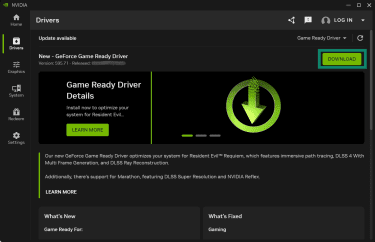
- Go to the Drivers section to check for available NVIDIA driver updates, then click Download.
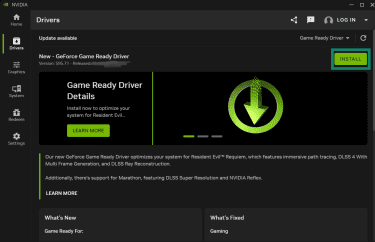
- Once the download is complete, click Install.
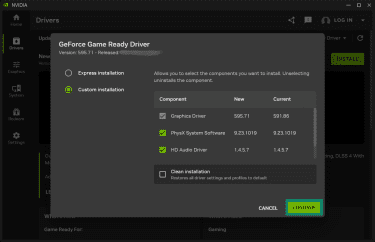
- Click through the dialog box and choose whether you want a custom or express installation. Once you’ve ticked the boxes, click Continue.
Troubleshooting common driver update issues
Driver issues can happen for several reasons. If a problem stems from an outdated, missing, or incompatible driver update, checking for optional updates may help in some cases, but reinstalling the driver or getting the latest version from the manufacturer may also be necessary.
If you recently installed updates and are still encountering issues, the reasons may include driver conflicts, incompatible versions, or Windows using basic drivers that don’t fully support the hardware.
When updates fail, two common ways to address installation errors and driver conflicts are to reinstall the driver or to roll back to a previous one.
Reinstalling drivers
Reinstalling drivers can help reset conflicting settings and replace corrupted files.
- Open Device Manager and expand the category for the affected device. Right-click the device and select Uninstall device.
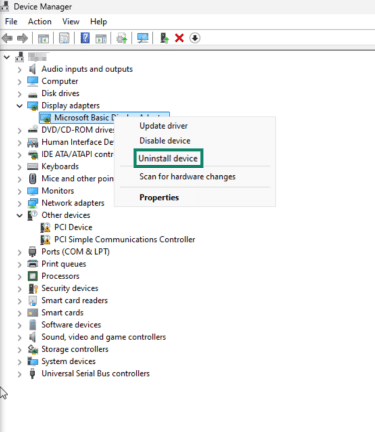
- Press Uninstall again to confirm.
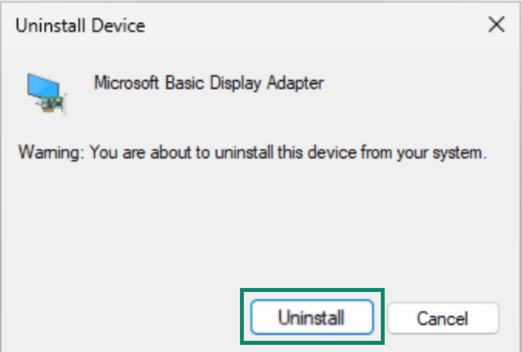
- Restart the computer. Windows may reinstall the driver automatically. If it doesn't, open Device Manager, right-click your computer name (or select Action), and choose Scan for hardware changes.
Rolling back drivers: How and when
Rolling back drivers can help when a recent update causes issues. The option to roll back may be unavailable if Windows no longer has the previous driver version stored. If that happens, consider reinstalling the driver or using a restore point.
- Open Device Manager and expand the category for the affected device. Right-click the device and select Properties.
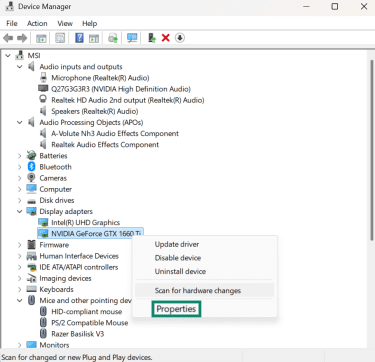
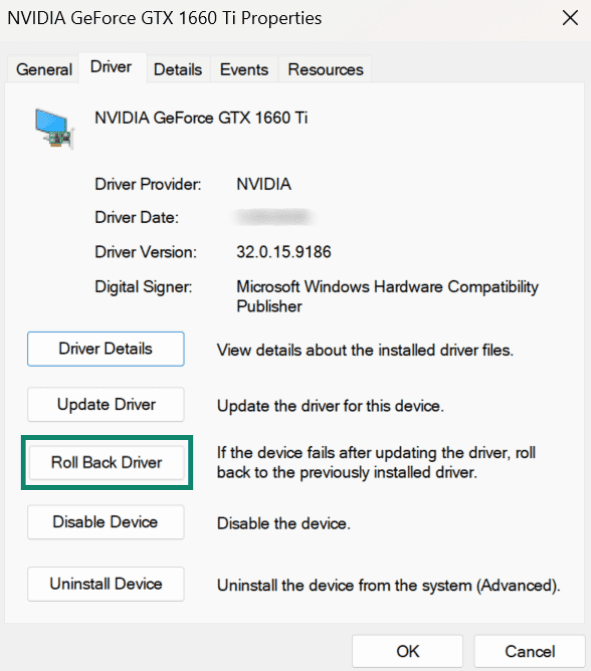
- Open the Driver tab and select Roll Back Driver. Choose the option that best matches the issue and click Yes to confirm.
- Restart the computer to apply the change.
FAQ: Common questions about updating PC drivers
How do I update all drivers on my PC?
How do I manually update a driver?
How to check if a driver needs to be updated?
How do I check if my graphics drivers are up to date?
What should I do if my driver update fails?
How often should I update my drivers?
Can I roll back to an older driver version?
What is the best (safe) way to update drivers on Windows 11?
Take the first step to protect yourself online. Try ExpressVPN risk-free.
Get ExpressVPN













 Support Center
  FAQ
FAQ  VPN Setup Tutorials