How to hide your browsing history from your Wi-Fi router



Your Wi-Fi router can potentially observe information about your internet activity, including details that can reveal which online services your device connects to. The information available to the router, and whether it stores any of it, depends on the router, network configuration, Domain Name System (DNS) setup, and logging features.
When ExpressVPN runs on your device, it encrypts traffic before it reaches the router. This prevents the router from directly inspecting the contents of the VPN tunnel or directly observing the individual connections to destinations carried inside that tunnel.
However, ExpressVPN doesn’t make your network activity invisible. Your router can still see that your device is connected, that it communicates with a VPN server, and some information about the connection itself.
How ExpressVPN limits what your router can see
There are two main ways that ExpressVPN limits what your router can see when you’re browsing online.
ExpressVPN encrypts your internet traffic
When you connect to ExpressVPN, the app creates an encrypted tunnel between your device and an ExpressVPN server. Traffic routed through the tunnel is encrypted before it reaches your router, so the router can’t read its contents.
HTTPS already encrypts web traffic between your browser and websites that use it. This generally prevents someone monitoring the network from reading page contents, passwords, messages, and other information protected by HTTPS.
However, a VPN encrypts traffic between your device and the VPN server regardless of whether the eventual connection uses HTTPS, providing an additional layer of protection for traffic that isn't otherwise encrypted.
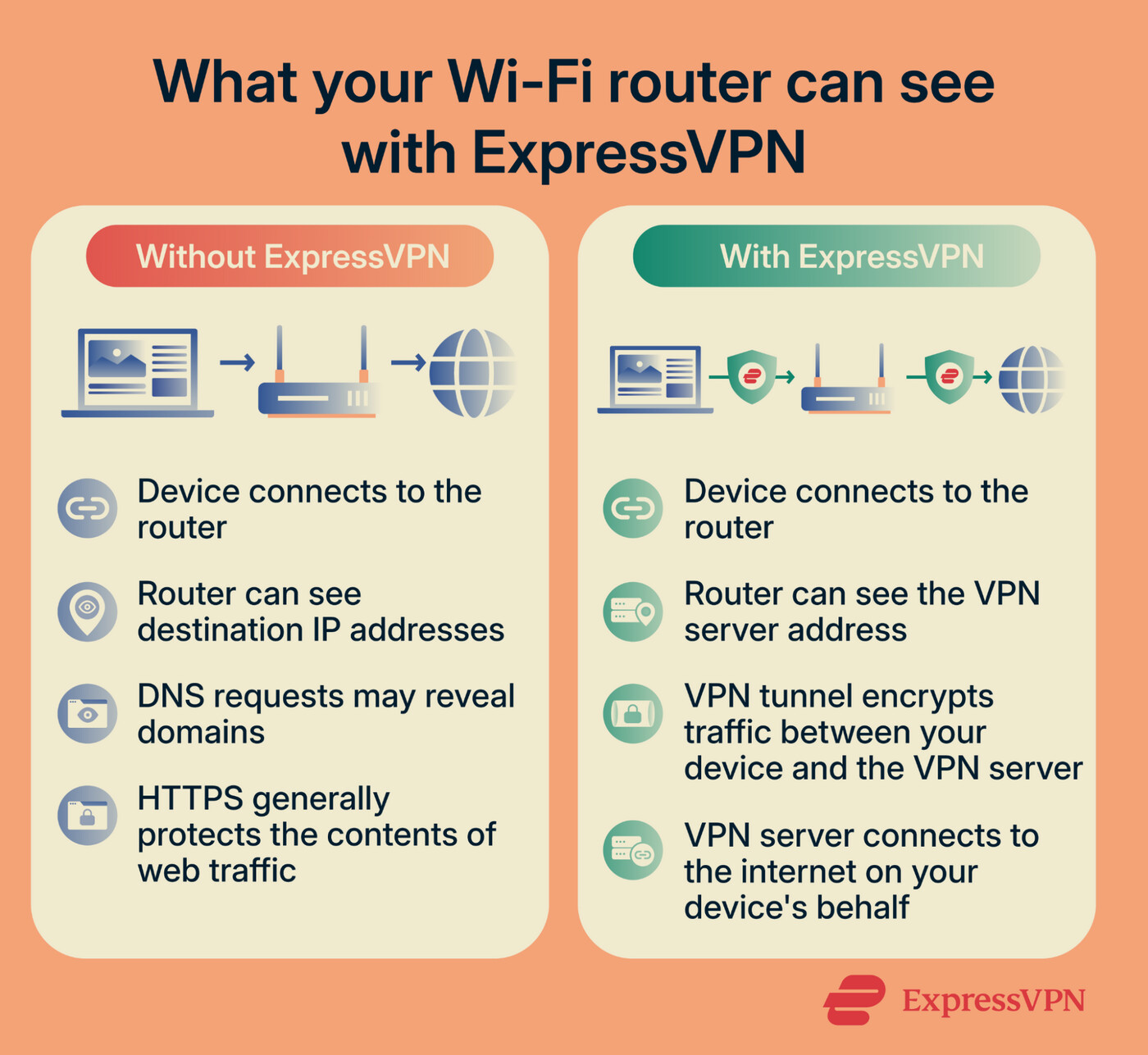
ExpressVPN hides individual internet destinations from your router
HTTPS doesn’t necessarily conceal where a connection goes. Depending on the DNS and Transport Layer Security (TLS) configuration, a network may still see or infer information about the services your device connects to. Destination IP addresses and unencrypted DNS requests can also expose information about those services.
With ExpressVPN connected on your device, your router sees an encrypted connection between your device and the ExpressVPN server, rather than the individual destinations reached through the VPN tunnel.
ExpressVPN also routes DNS queries through its private DNS servers, so your local network doesn't receive the DNS lookups that might otherwise reveal the domains your device is requesting.
The same principle applies on networks you don’t control. A network administrator can observe the connection to the VPN server but not the individual destinations reached through the tunnel.
How to use ExpressVPN to protect your router traffic
Here’s how to install and use ExpressVPN on each device whose traffic you want encrypted before it reaches your Wi-Fi router.
Install the app on the devices you use to browse
ExpressVPN offers apps for Windows, macOS, Linux, Android, iOS, and other supported platforms like Fire TV and Chromebook. Download the appropriate app, sign in, and follow the setup instructions for your device.
For full download and installation instructions for each platform, see our guide: How to download and install ExpressVPN.
Connect to a VPN server
Here’s what to do once you’ve installed the app. These steps show the process on the ExpressVPN Windows app, but it’s similar whichever app you’re using.
- Open the ExpressVPN app and select the power button to connect to a server. The app will automatically select the optimal server for you based on factors like speed, latency, and distance.
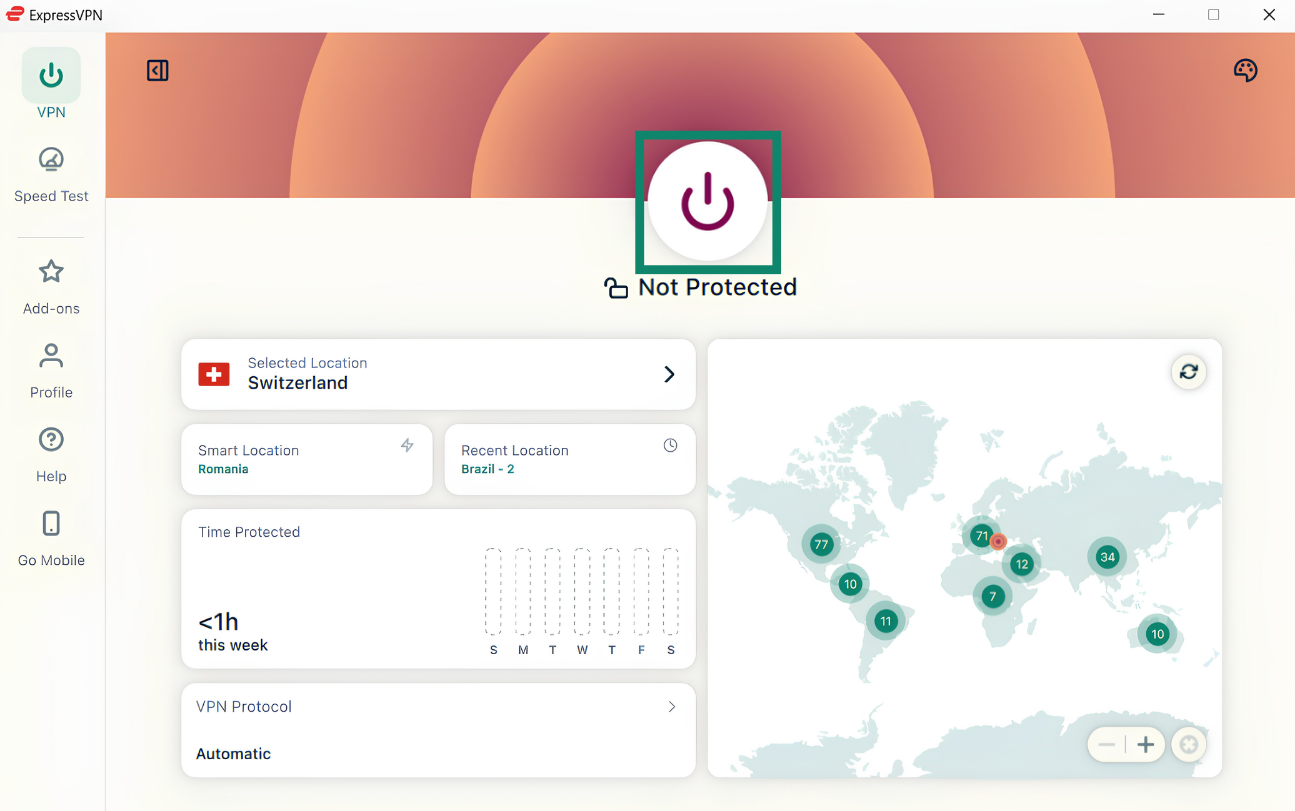
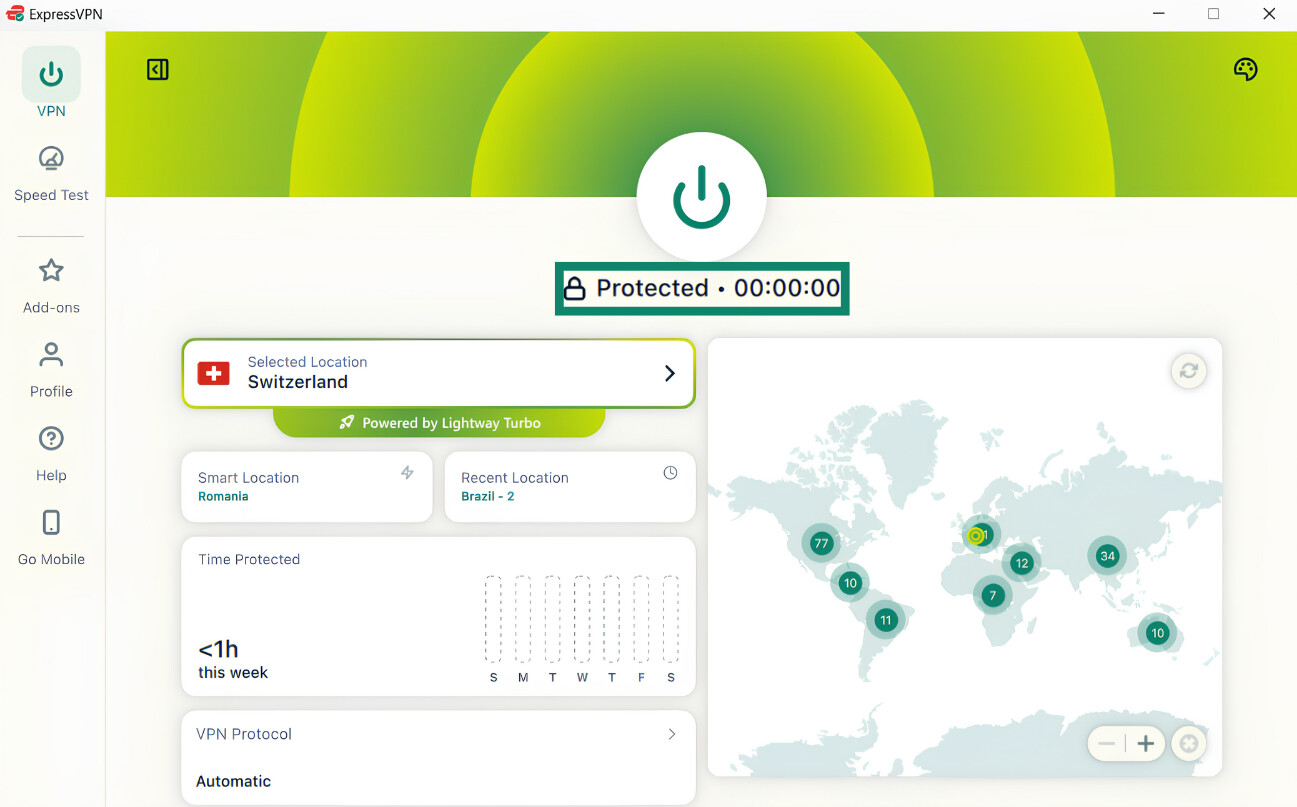
- Wait until the app shows Protected. Once connected, your Wi-Fi router sees your device connecting to ExpressVPN rather than the individual websites and online services you access through the VPN tunnel.
You can also use ExpressVPN’s IP Address Checker to check that your browser now shows the VPN IP address rather than your regular public IP address.
Check your kill switch settings
ExpressVPN’s Internet Kill Switch blocks internet access if an active VPN connection drops unexpectedly. This prevents traffic from leaving your device outside the VPN tunnel and becoming visible to your router while ExpressVPN reconnects. ExpressVPN enables the Internet Kill Switch by default on all its apps.
To control this setting, follow these steps:
- Open Profile from the menu on the left side.
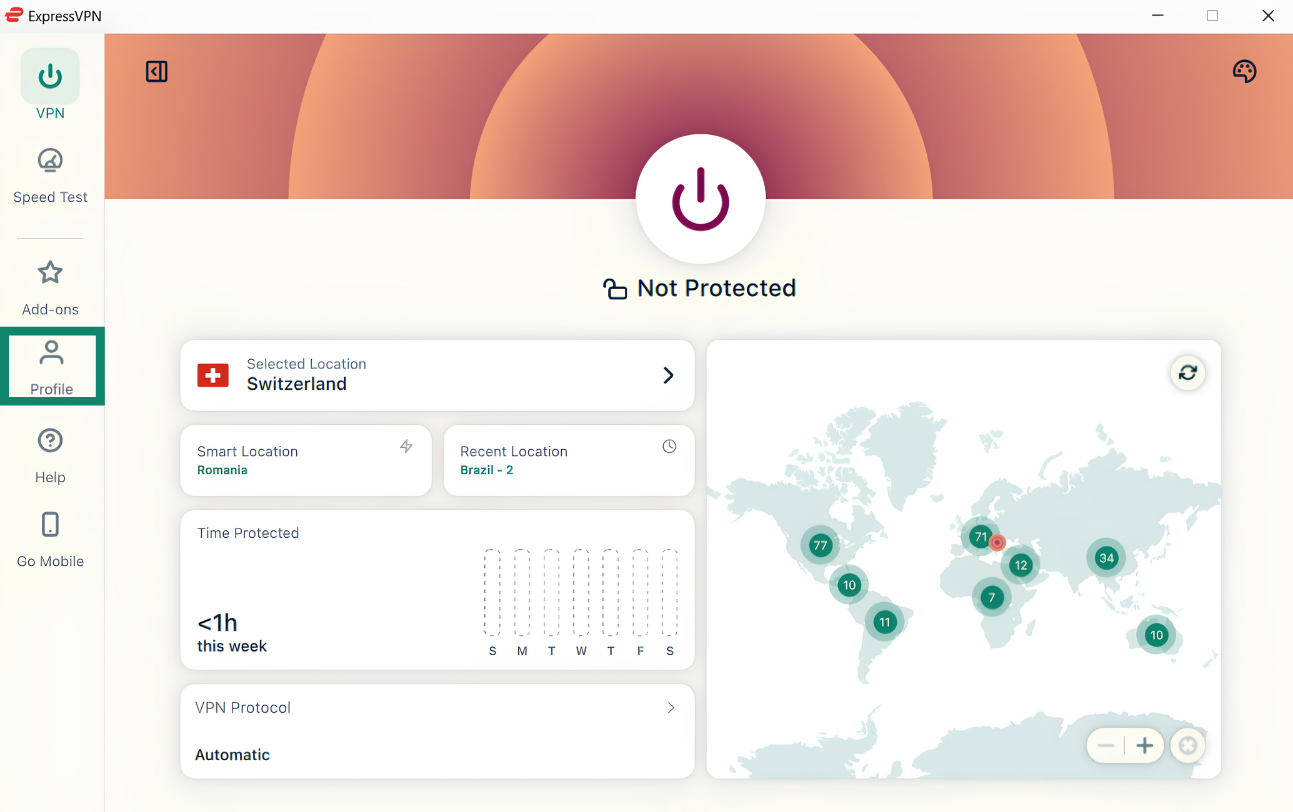
- Select the Internet Kill Switch option.
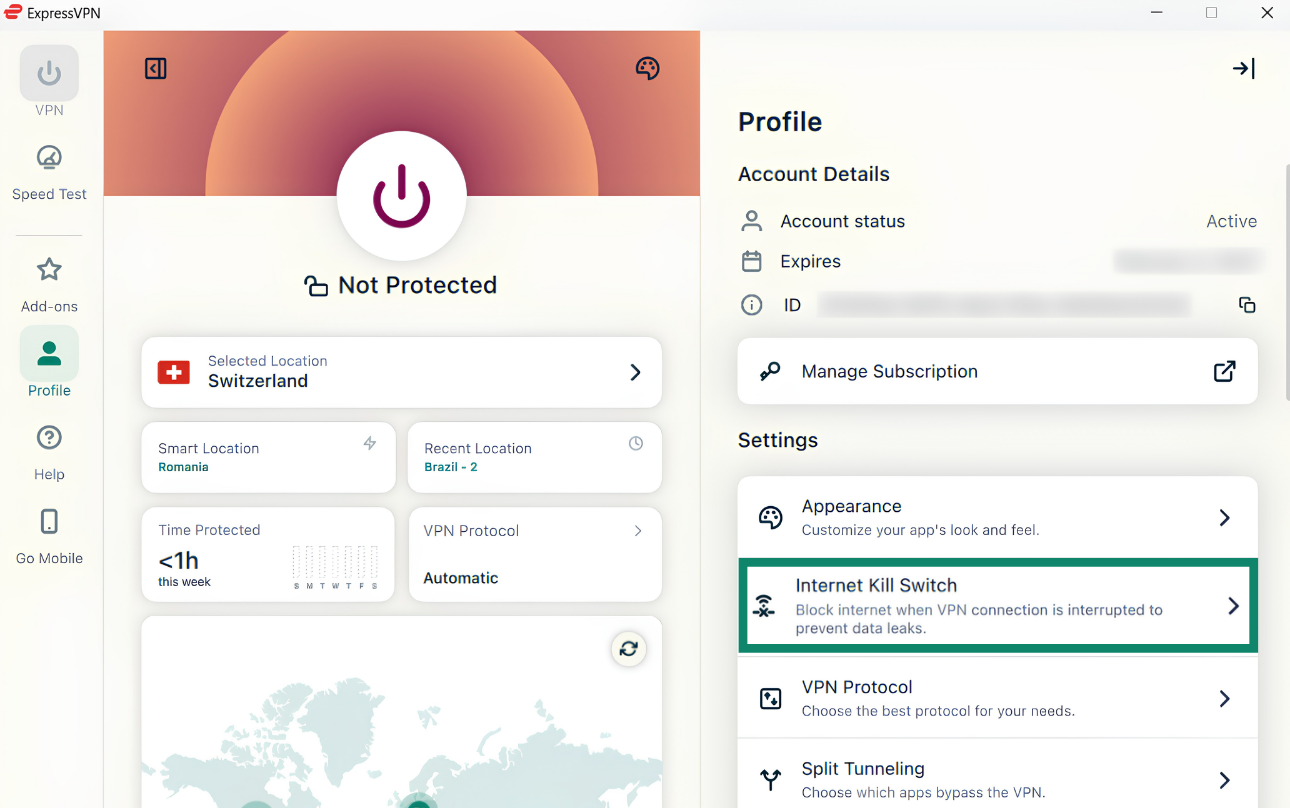
- Check the Enable when connected option is toggled on or, optionally, toggle on the Enable at all times option.
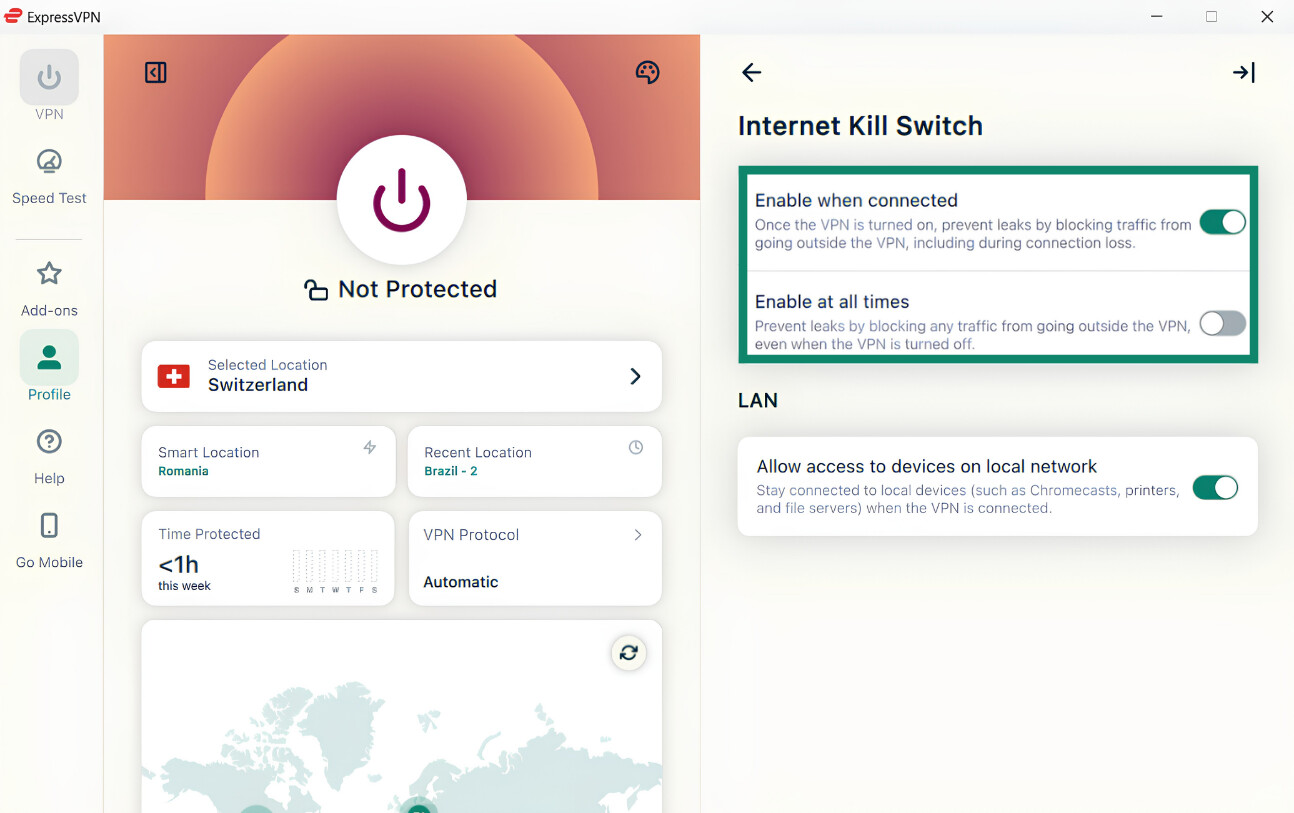
For full instructions and details about the Internet Kill Switch, see our support guides for the desktop apps, Android, and iOS.
ExpressVPN encrypts your internet traffic before it reaches your router, preventing it from directly seeing which websites and online services you access through the VPN connection.
Hide your browsing activity with ExpressVPN
Try ExpressVPN with a 30-day money-back guarantee for new users.
What ExpressVPN can't hide from your router
Even when you’re using the ExpressVPN app on all your devices, your router can still see some basic network information:
- That your device is connected: Your router can identify devices connected to your local network and see network information associated with those connections.
- The VPN connection: The router can generally see that the device is communicating with a VPN server.
- Connection metadata: The router can see when the device sends or receives data through the VPN connection and how much data it transfers. ExpressVPN encrypts the traffic carried through the tunnel, but it doesn’t hide the existence or volume of the connection from the local network.
- Traffic that doesn’t use the VPN: Traffic excluded through split tunneling or sent while the VPN is disconnected doesn’t receive the VPN tunnel’s protection before it reaches the router. The router can therefore observe information associated with those direct connections.