How to change your IP address on iPhone


You generally can’t choose or permanently change the public IP provided by your Wi-Fi network or mobile carrier. However, you can change the IP address that websites and online services see by connecting to ExpressVPN.
When you connect, your internet traffic travels through an encrypted VPN tunnel to an ExpressVPN server, so websites see the server’s IP address instead of your usual public IP address.
Quick guide: How to change your IP address on iPhone
-
Download the ExpressVPN iPhone app and sign in.
-
Tap the Power button to connect to Fastest Location. When the app displays "Protected," websites and online services will see the VPN server’s IP address instead of your usual public IP address.
For installation, sign-in, permissions, and detailed setup, see the full iOS Support guide.
How to check that your IP address has changed
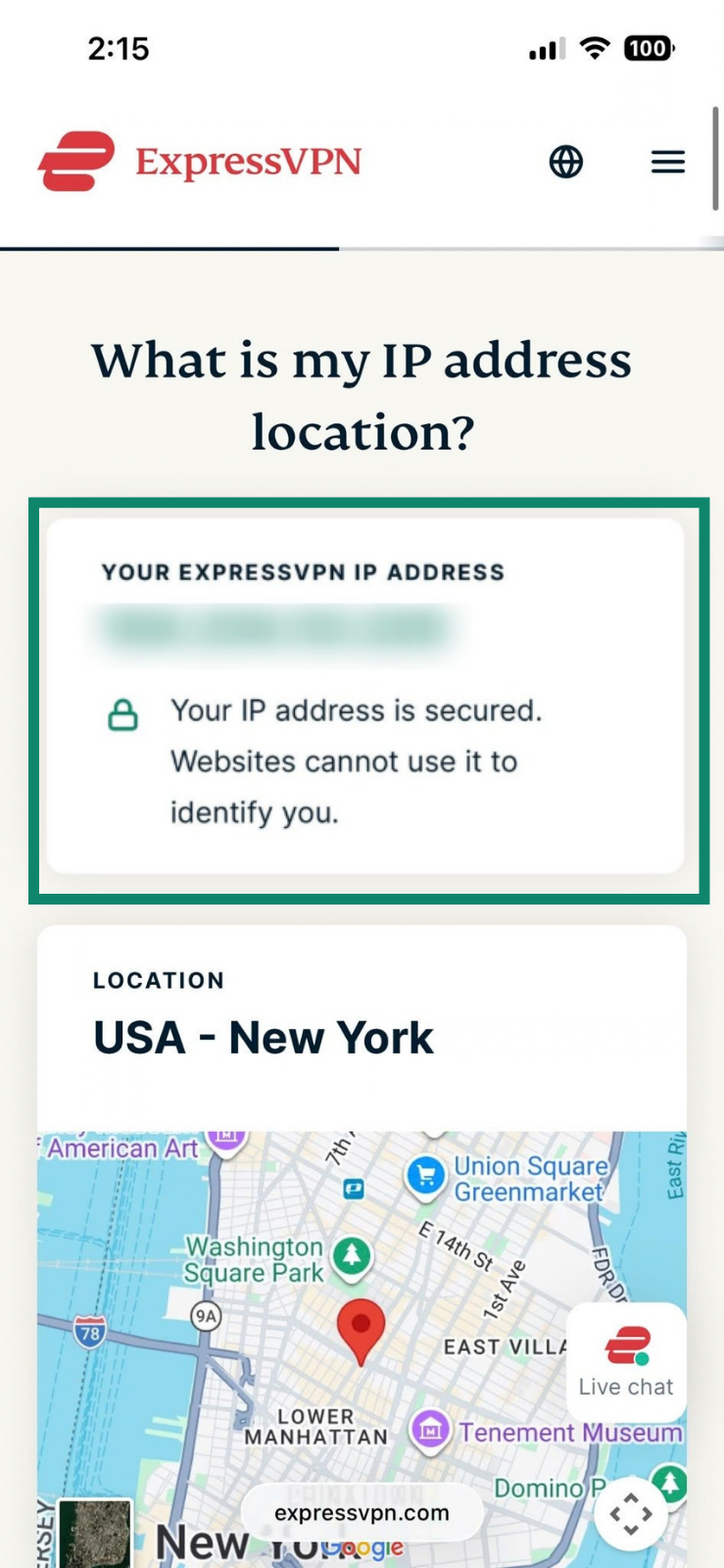
After connecting to ExpressVPN, open ExpressVPN’s IP address lookup tool. It should show that your IP address is secured, and the IP address and location shown should correspond to the VPN server you’re connected to.
For a direct comparison, use the lookup tool before connecting, note the IP shown, and compare it with the one shown after connecting.
Why change your IP address with ExpressVPN?
Using a different public IP address on your iPhone can be useful in several situations:
- Improve your privacy online: Your public IP can reveal information such as your approximate location and internet provider. ExpressVPN masks your usual IP while connected, limiting what websites can learn from that identifier.
- Appear to browse from a different location: Some websites use your IP address to tailor regional search results, language, and other local content. ExpressVPN lets you choose from available server locations when you want your visible IP to be associated with a different location.
- Troubleshoot IP-based access issues: If a website is blocking or challenging your current IP address, connecting through a different ExpressVPN server can help you determine whether the IP itself is causing the problem.
Change your iPhone IP address with ExpressVPN
What doesn’t change when you connect to ExpressVPN
When you connect to ExpressVPN, your iPhone’s private IP address, shown in its Wi-Fi settings, doesn’t change. ExpressVPN also doesn’t change your iPhone’s GPS location, sign you out of accounts, or remove cookies that keep you signed in, meaning websites will still recognize your account and device.
What to check if your IP address hasn’t changed
If ExpressVPN’s IP checker still shows your usual public IP address, open the ExpressVPN app and confirm that it is properly connected. Tap the Power button to reconnect.
Also check that another VPN or iCloud Private Relay isn’t overriding ExpressVPN. If two VPNs attempt to connect at once, they can conflict and prevent your traffic from routing through ExpressVPN, leaving your usual public IP address visible.
If the IP address still hasn’t changed, see ExpressVPN’s troubleshooting guide or get in touch with us for more help.